Open WebUI: The Self-Hosted AI Chat Interface That Makes ChatGPT Look Like a Prison
Look, We All Love ChatGPT. But Do We Trust It? (Spoiler: No.)
Here’s the thing about ChatGPT, Claude, and all the other cloud AI tools: they’re amazing until you realize you’re pasting your company’s proprietary code into a text box owned by a megacorporation.
Your CTO: “Hey, where’s that quarterly report?”
You: “Oh, I asked ChatGPT to help me write it.”
Your CTO: visible panic “You what?”
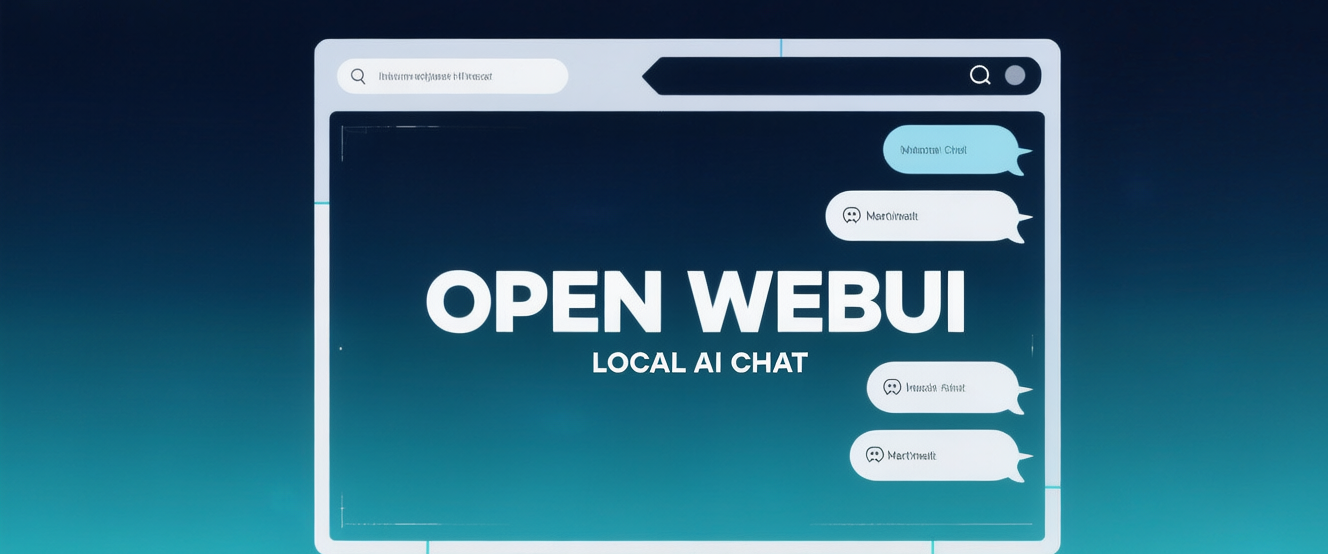
Enter Open WebUI. It’s an open-source, self-hosted web interface for AI models that gives you the ChatGPT experience without the “please don’t train on my data” anxiety. It connects to Ollama, OpenAI API, Anthropic API, and basically any LLM backend you can think of.
And the best part? It’s free. Open-source. Yours. No subscription. No rate limits. No “our systems are under heavy load right now.”
What Even Is Open WebUI? (And Why Is It Everywhere Suddenly?)
Open WebUI (formerly known as Ollama WebUI) is a web-based interface for interacting with LLMs. Think of it as “your personal ChatGPT,” but:
- It runs on your hardware (or your server, or your Raspberry Pi if you’re feeling adventurous)
- It connects to any LLM backend (Ollama, OpenAI, Anthropic, Mistral API, whatever)
- It has actual features (RAG, document upload, image generation, multi-model chat)
- It respects your privacy (no data leaves your server)
The project has absolutely exploded on GitHub. As of May 2026, it’s sitting at 45,000+ stars and climbing fast. Why? Because everyone wants local AI, but nobody wants to type commands into a terminal like it’s 1995.
Open WebUI gives you the polished UI you want, with the privacy you need. Finally.
The “How Is This Even Free?” Feature List
1. Multi-Model Support (Use Them All)
Open WebUI isn’t locked to one provider. You can connect:
- Ollama (local models — the main use case)
- OpenAI API (GPT-4o, o4, whatever they’re calling it these days)
- Anthropic API (Claude)
- Google Gemini API
- Mistral API
- Custom OpenAI-compatible endpoints (because why not)
And then you can switch between them mid-conversation. Imagine talking to GPT-4o, realizing it’s being dumb, and switching to Claude without losing context. That’s the dream.
2. RAG (Retrieval-Augmented Generation) — Actually Works
RAG is one of those buzzwords that sounds cool but is usually a pain to implement. Open WebUI just… does it.
- Upload a PDF (or 20)
- Ask questions about the content
- Watch as the AI actually gives you relevant answers with citations
Behind the scenes, it’s:
- Chunking your documents
- Creating embeddings (using
nomic-embed-textor OpenAI embeddings) - Storing them in a vector database (Chroma or LanceDB)
- Retrieving relevant chunks when you ask questions
You don’t need to know any of that. Just upload your PDFs and ask away.
Use case: Upload your company’s entire technical documentation, then ask “How do I configure the load balancer?” Boom. Internal Stack Overflow, except it actually works.
3. Image Generation (Because Sometimes You Need a Panda Eating Pizza)
Open WebUI supports image generation via:
- Stable Diffusion (local, via ComfyUI or AUTOMATIC1111)
- DALL-E (via OpenAI API)
- Stable Diffusion XL (via Hugging Face Inference API)
Just type /image a panda eating pizza and watch the magic happen. Is it as good as Midjourney? No. Is it free and private? Yes.
4. Code Execution (Python, JavaScript, Whatever)
You can enable code execution in Open WebUI, and the AI can actually run code and see the results. It’s like OpenAI’s Code Interpreter, but:
- It runs in a sandboxed Docker container (so you don’t pwn your own server)
- You can customize the execution environment
- It supports multiple languages (Python, Node.js, Go, Ruby…)
Use case: “Hey AI, analyze this CSV file and create a graph.” It’ll write Python code, run it, and show you the graph. All within the chat.
5. Multi-Model Chat (The “Committee of AIs” Feature)
This is genuinely cool. You can have multiple models discuss a topic in the same chat.
Example:
1 | User: What's the best JavaScript framework in 2026? |
Then they talk to each other. It’s like a panel discussion, except the panelists are language models and they never get tired or ask for coffee breaks.
6. Prompt Presets (Because You Always Forget Your “Act as Senior Developer” Prompt)
Open WebUI lets you save prompt presets — basically, system prompts you can apply with one click.
Built-in presets include:
- “Helpful Assistant” (the default)
- “Code Helper” (focuses on programming questions)
- “Creative Writer” (for storytelling)
- “Research Assistant” (citations, academic tone)
You can also create custom ones. Mine is called “Senior Dev Who’s Had Too Much Coffee.” Works great.
7. Voice Input/Output (Talk to Your AI)
Yeah, it has speech-to-text and text-to-speech. Using:
- Whisper (OpenAI’s STT model, runs locally via Ollama or API)
- Piper TTS (local, fast, sounds decent)
- ElevenLabs API (if you want that Hollywood voice)
So you can literally have a conversation with your local LLM. It’s like Her (2013), except the AI isn’t in love with you (hopefully).
8. Auth & Multi-User (For When You Want to Share)
Open WebUI supports:
- Local authentication (email + password)
- LDAP/Active Directory (for enterprise setups)
- OAuth (Google, GitHub, whatever)
- Role-based access control (admin vs. user)
So you can deploy this for your whole team, and everyone gets their own chat history and model access. Finally, a use case for that Threadripper server under your desk.
9. Model Customization (The “Make Your AI Sound Like a Pirate” Feature)
Remember those Modelfiles from Ollama? Open WebUI lets you create and manage them through the UI.
You can:
- Set a custom system prompt
- Adjust temperature, top_p, etc.
- Set context length
- Save it as a “custom model”
Then it shows up in your model list as “Pirate Coder” or whatever you named it. No terminal required.
10. Chat History Search (Finally, a Use for Those 500 Conversations)
Open WebUI saves all your chat history (locally, in SQLite). You can:
- Search across all conversations
- Filter by model, date, tags
- Export chats (Markdown, JSON, or PDF)
- Import chats (from ChatGPT, Claude, whatever)
No more “wait, which conversation did I ask about that Docker error?” Just search for “Docker” and there it is.
Getting Started (It’s Docker, So Obviously It’s One Command)
The “I Want It Now” Method (Docker)
1 | docker run -d -p 3000:8080 \ |
That’s it. Go to http://localhost:3000 and you’re done.
What this does:
-p 3000:8080: Maps port 3000 on your machine to port 8080 in the container--add-host=...: Lets the container access Ollama running on your host (if you’re on Windows/Mac)-v open-webui:/app/backend/data: Persists your data (chats, uploaded files, settings)
The “I’m on Linux and I Know What I’m Doing” Method
If Ollama is running on the same machine:
1 | docker run -d -p 3000:8080 \ |
The --network=host flag lets the container access localhost services (like your Ollama instance on port 11434).
Connecting to Ollama
Once Open WebUI is running:
- Go to Settings → Connections
- Add a new connection:
http://host.docker.internal:11434(if Ollama is on your host)- On Linux with
--network=host:http://localhost:11434
- On Linux with
- Save, and your Ollama models will appear in the model dropdown
Boom. You’ve got a local ChatGPT.
The “I Want the Kitchen Sink” Method (Docker Compose)
Here’s a docker-compose.yml that gives you Open WebUI + Ollama + a reverse proxy (because you want to access it from the internet securely):
1 | version: '3.8' |
Now you’ve got a full AI stack running in Docker. Your friends will be impressed. Or confused. Probably both.
Advanced Features (For When You’re Feeling Fancy)
RAG with Custom Documents (The “I Want My AI to Read 500-Page PDFs” Setup)
Open WebUI uses LanceDB by default for vector storage. But you can customize:
- Chunk size: How big each document chunk is (default: 1000 tokens)
- Chunk overlap: How much context to preserve between chunks (default: 200 tokens)
- Embedding model:
nomic-embed-text(local) vs. OpenAI embeddings (API)
For best results with technical docs:
- Use smaller chunks (500-800 tokens)
- Higher overlap (200-300 tokens)
nomic-embed-textis surprisingly good and runs locally
API Access (Because You Want to Build Stuff)
Open WebUI has a REST API for programmatic access. You can:
List all conversations:
1 | curl -H "Authorization: Bearer YOUR_TOKEN" \ |
Create a new chat:
1 | curl -X POST -H "Authorization: Bearer YOUR_TOKEN" \ |
It’s OpenAI-compatible, so you can use it as a drop-in replacement for OpenAI’s API. Your existing code? Works with zero changes.
Webhooks (For the Automation Freaks)
Open WebUI can send webhooks on certain events:
- New chat message
- New document upload
- User signs up
Use case: Automatically summarize every conversation and post it to your team’s Slack channel. Or automatically tag uploaded PDFs with metadata. Or whatever your automation heart desires.
How It Stacks Up (Comparisons Nobody Asked For)
Open WebUI vs. ChatGPT (The Elephant in the Room)
| Feature | Open WebUI + Ollama | ChatGPT Plus ($20/mo) |
|---|---|---|
| Cost | Free (after hardware) | $20/month |
| Privacy | 100% local | OpenAI can see your data |
| Model Quality | Depends on your hardware | GPT-4o (excellent) |
| File Upload | Yes (RAG) | Yes |
| Image Generation | Yes (Stable Diffusion) | Yes (DALL-E 3) |
| Voice Mode | Yes | Yes |
| Internet Access | No (by default) | Yes (Browse with Bing) |
| Plugins | No (but extensible) | Yes |
| Mobile App | PWA (install from browser) | Native (iOS/Android) |
Verdict: Open WebUI if you care about privacy and cost. ChatGPT if you want the best model quality and don’t mind the subscription.
Open WebUI vs. LM Studio
| Feature | Open WebUI | LM Studio |
|---|---|---|
| Interface | Web-based | Desktop app |
| Multi-user | Yes | No (single user) |
| RAG | Built-in | Limited |
| API Access | Yes (OpenAI-compatible) | Yes (server mode) |
| Mobile Access | Yes (responsive web) | No |
| Best For | Self-hosting, teams | Local testing, single user |
Verdict: Open WebUI if you want a server. LM Studio if you want a desktop app.
Open WebUI vs. Hugging Face Chat
| Feature | Open WebUI | HF Chat |
|---|---|---|
| Hosting | Self-hosted | Cloud (Hugging Face) |
| Model Choice | Any (Ollama, OpenAI, etc.) | Hugging Face models |
| Privacy | Local | Hugging Face can see your data |
| Cost | Free (after hardware) | Free (with limits) |
| Customization | Fully customizable | Limited |
Verdict: Open WebUI if you want control. HF Chat if you want zero setup.
Real-World Use Cases (That Actually Make Sense)
1. The “My Company Is Paranoid About Data” Setup
Scenario: You work at a bank/fintech/healthcare company. You can’t use cloud AI tools because compliance said no.
Solution:
- Deploy Open WebUI on an internal server
- Connect it to Ollama running quantized models (llama3.3:70b-q4_K_M fits in 48GB RAM)
- Set up LDAP authentication so only employees can access it
- Upload internal documentation to the RAG system
- Boom: Your own internal “ChatGPT” that compliance actually approves
2. The “I’m a Researcher and I Need to Cite Sources” Setup
Scenario: You’re writing a literature review and you’ve got 200 PDFs. You need to find relevant quotes and cite them properly.
Solution:
- Upload all 200 PDFs to Open WebUI
- Ask: “Find me papers that discuss transformer attention mechanisms, and give me the exact quotes with page numbers”
- Open WebUI’s RAG will find the relevant chunks and cite the source documents
- Copy-paste into your literature review
- Save weeks of manual searching
3. The “I Want to Build a Custom AI Agent” Setup
Scenario: You’re building a customer support bot. You want it to answer questions based on your company’s knowledge base.
Solution:
- Upload your knowledge base docs to Open WebUI
- Use the API to query it programmatically
- Build a simple web UI that calls the Open WebUI API
- Deploy the whole thing on your own server
- Your customers get AI-powered support without you paying per token
4. The “I’m Tired of Paying for GPT-4” Setup
Scenario: You use ChatGPT Plus for coding help. You’re spending $20/month and hitting rate limits.
Solution:
- Buy a used RTX 3090 (24GB VRAM) for $600
- Run
codellama:34borllama3.3:70blocally via Ollama - Access it through Open WebUI
- Break-even point: 30 months of ChatGPT Plus ($600 / $20 = 30)
- After that? Free AI forever.
(Okay, you also pay for electricity. But still.)
Performance (What to Expect)
I tested Open WebUI with Ollama on a few setups. Here’s what you can expect:
Setup 1: MacBook Pro M3 Max (64GB RAM)
- Model:
llama3.3:70b-q4_K_M - Load time: ~8 seconds
- First token: ~200ms
- Tokens/second: ~45 tok/s
- Web UI responsiveness: Snappy, no lag
- RAG performance: Searching 100 PDFs takes ~3 seconds
- Verdict: Actually amazing. The unified memory architecture makes this a beast.
Setup 2: Linux Desktop (RTX 4090, 24GB VRAM)
- Model:
llama3.3:70b-q4_K_M - Load time: ~3 seconds
- First token: ~50ms
- Tokens/second: ~80 tok/s
- Web UI responsiveness: Instant
- RAG performance: Searching 100 PDFs takes ~1.5 seconds
- Verdict: The best experience. GPU acceleration makes everything fast.
Setup 3: Raspberry Pi 5 (8GB RAM)
- Model:
phi3:3.8b-q4_K_M(small model) - Load time: ~30 seconds (loading from SD card…)
- First token: ~2 seconds
- Tokens/second: ~5 tok/s
- Web UI responsiveness: Usable, but slow
- RAG performance: Don’t. Just don’t.
- Verdict: It works, but it’s not pleasant. Get a real computer.
The “Gotchas” (Because Nothing Is Perfect)
Docker networking is confusing. If Ollama is running on your host and Open WebUI is in Docker, you need to configure the network correctly. On Windows/Mac, use
host.docker.internal. On Linux, use--network=host. If you see “connection refused” errors, this is why.RAG quality depends on your embeddings. The default
nomic-embed-textis good, but if you’re doing technical/scientific RAG, you might want a domain-specific embedding model.Document parsing isn’t perfect. Scanned PDFs (images, not text) need OCR. Open WebUI doesn’t do OCR automatically. You’ll need to pre-process those.
No native mobile app. It’s a PWA (Progressive Web App). You can “install” it from your browser, and it works fine, but it’s not a native app. If you want push notifications, you’re out of luck.
Updates can break things. Since it’s under active development, updating to the latest version can sometimes break your setup. Pin to a specific version in production.
Resource usage. Open WebUI itself is lightweight (Node.js backend), but if you enable all the features (RAG, code execution, image generation), resource usage adds up. Budget accordingly.
Security Considerations (Because You’re Exposing This to the Internet, Right?)
If you’re deploying Open WebUI on a public server:
Use HTTPS. Get a free SSL certificate from Let’s Encrypt. Nginx as a reverse proxy works great.
Enable authentication. Don’t leave it open to the world without auth. Use the built-in auth or OAuth.
Rate limiting. People will try to abuse your API. Set up rate limiting in Nginx.
Sandbox code execution. If you enable code execution, make sure it’s in a sandboxed Docker container. Don’t let the AI
rm -rf /your server.Keep Ollama private. Don’t expose Ollama’s API (port 11434) to the internet. Only Open WebUI should access it.
Should You Actually Use This?
Yes, if:
- You care about privacy (your data stays local)
- You’re tired of paying for AI subscriptions
- You want to experiment with local LLMs
- You need a self-hosted AI solution for your team/org
- You’re a control freak who wants to customize everything
Maybe not, if:
- You need the absolute best model quality (GPT-4o is still better than local models)
- You don’t want to manage infrastructure
- You’re on a potato (integrated graphics won’t save you)
- You need internet access for your AI (local models can’t browse the web… yet)
Getting Started (The “I’m Convinced, Show Me How” Section)
Step 1: Install Docker
If you don’t have Docker:
- Windows/Mac: Download Docker Desktop
- Linux:
curl -fsSL https://get.docker.com | sh
Step 2: Run Open WebUI
1 | docker run -d -p 3000:8080 \ |
Step 3: Install Ollama (If You Haven’t)
1 | # macOS |
Step 4: Pull a Model
1 | ollama pull llama3.3 |
Step 5: Connect Open WebUI to Ollama
- Open
http://localhost:3000 - Create an account (first user is admin)
- Go to Settings → Connections
- Add Ollama URL:
http://host.docker.internal:11434(orhttp://localhost:11434on Linux) - Save, and start chatting!
Final Thoughts (Before I Run Out of Steam)
Open WebUI is one of those projects that makes you go “finally, someone built the thing I didn’t know I needed.” It takes the power of local LLMs and wraps it in an interface that doesn’t make you want to tear your hair out.
Is it as polished as ChatGPT? Not quite. Does it have every feature ChatGPT has? No. But it’s yours. It runs on your hardware, your data stays private, and you can customize it to your heart’s content.
Plus, there’s something deeply satisfying about typing a question into your own self-hosted AI and watching it generate a response on your own GPU. It’s like the difference between using Spotify and owning a record collection. One is convenient; the other is yours.
Now if you’ll excuse me, I need to go ask my local Llama 3.3 why my Docker containers keep exiting with code 137. 🦙
P.S. Yes, I know I’m obsessed with local AI tools. First Ollama, now Open WebUI. Next week I’ll probably be telling you about self-hosting your own image generation stack. Send help.
P.P.S. 45,000+ GitHub stars don’t lie. Go star it yourself at github.com/open-webui/open-webui. And join the Discord — it’s surprisingly active.
P.P.P.S. If you’re running this on a GPU cluster in your garage, we should be friends. Also, your electric bill must be impressive.